
https://drive.google.com/drive/folders/1_NVNA4wfSf0HhogFzYw3GUxhStVE2tOj?usp=sharing
That is all the files needed throughout the setup of hyperspin and rocketlauncher, sometimes things get hard to find, at the time of this writing hyperspin is in beta for version 2 but not general release so we’re still on 1.5.1 yet my antivirus ticked when i tried to download it again from hyperspin official site, tried my old download and it also ticked off my antivirus, so … so this is a zip of my blank functional system, i just zipped it up. No roms or emulators, but it makes my antivirus happy and it’s only a gig and a half. There’s some supporting files in that folder as well, but you probably only need the one called Hyperspin.7z It’s already through the steps below but it’s still neat to see how the sausage is made, so below are those steps to assemble.
https://youtu.be/87Hd5GowMx4?si=GpHYr5BRpsZkxYeQ This is the video I’m following, AV TV
Join hyperspin-fe.com – you have to be a member. Once you are logged in, come back and click this link. https://hyperspin-fe.com/files/file/17585-hyperspin-151-full-package USE LINK ABOVE, this one ticks off your antivirus
Download ssx.dll from the hyperspin website and drop it into the hyperspin directory.
https://hyperspin-fe.com/files/file/21571-windows-10-build-2004-hyperspin-fix-official
That’s a link to the ssx.dll file, absolutely necessary to function. Doesn’t matter what windows or anything, you need this file.
Join RLauncher.com – you also have to be a member or you can’t download anything.
Download hyperspin version 1.5.1 zip and rocketlauncher zip, putting on usb flash drive so i created 3 folders as in video, case sensitive, DBackup, HyperSpin, RocketLauncher – place zips in their respective folders and extract there, then delete the zip. Then go get the rl base media pack, move it into RL folder and extract it. Replace existing files, yes to all. You’ll also create a folder called Emulators, and this is where your downloaded emulators go. And EmuMovies Sync folder, this is where all the cool graphics go. more on that later. Your file structure will look like this
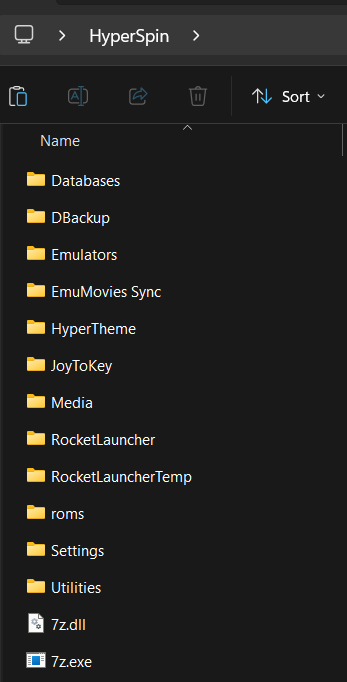
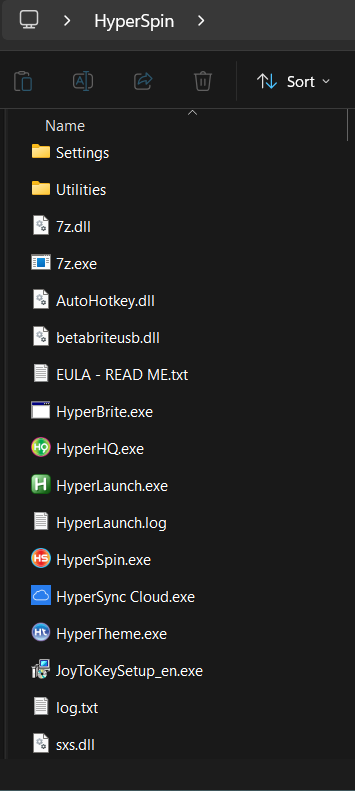
Navigate to HyperSpin\Settings\Settings.ini – Right click it, open with, Notepad++. Within the first block, there is a pathway you have to edit telling hyperspin the location of your rocketlaunch file so the two will work together. Edit the path Hyperlaunch_Path=D:\RocketLauncher\RocketLauncher.exe with the location being the full pathway to your RL exe file
RocketLauncherUI.exe – the key to it all, navigate to it, in the hyperspin/rocketlauncher/rocketlauncherui/rocketlauncherui.exe – it’s nested way in there. Such a long path, i just pin that to my taskbar while i’m working on this stuff. This is where you configure everything. Get comfy.

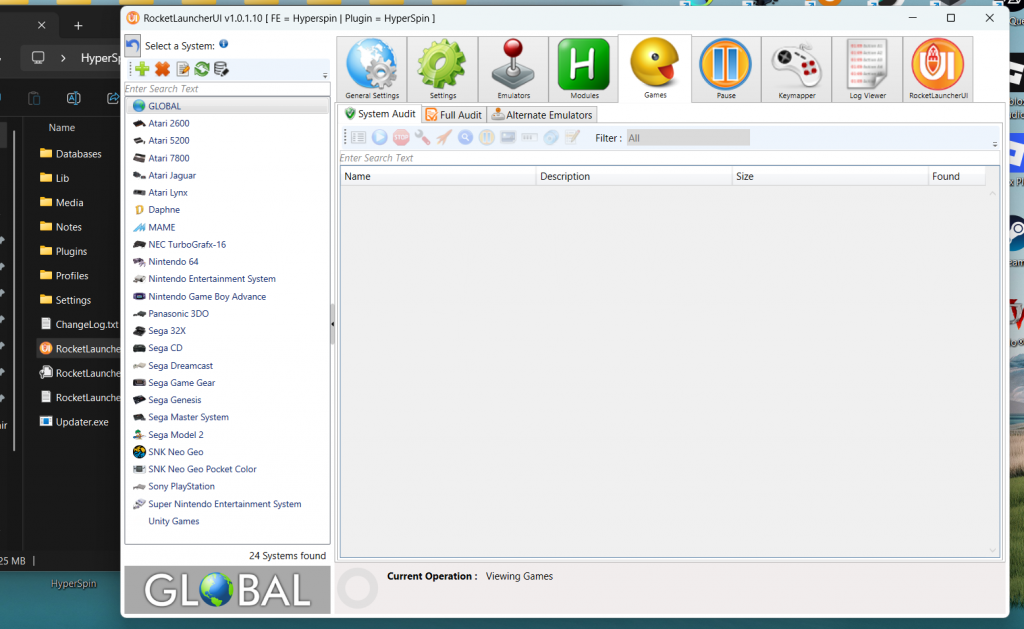


Once it launches, choose GLOBAL on the left, and GENERAL along the top icons. In the RL tab, point to your base rom folder if it’s not already, and your RL UI exe file. You may also need the launch password to be filled in, it’s just www.rlauncher.com for the password. Then choose the RLUI icon on the far right along the top. It sort of cuts it off in the image there, but you have to go to far right tab, RLUI, and add with the lil plus sign, a new frontend, hyperspin and point to your exe. And then make it active and default checkboxes. This is the other part of the handshake, the first was the settings ini file in your hyperspin to know where rocketlauncher is. Now rocketlauncher knows where hyperspin is. Funny lil system. Once you get this part, your systems will populate on the left panel automatically.
Next for funzies click on the global system, and the emulators tab, and you can see retroarch is set as your global emulator with every file extension known to man and it links to the module for retroarch.
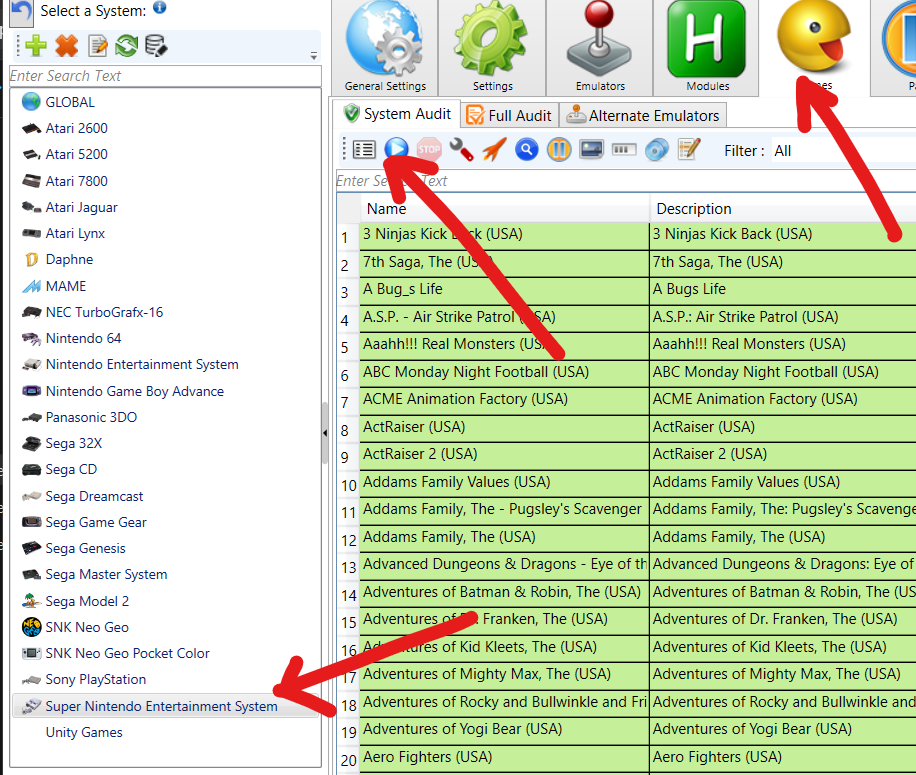
That’s what you gotta do for each of the systems you wanna run. You may want to run something besides retroarch, or you may need to mess with what core is being used in retroarch for the system you’re launching. You can see which of your roms are coming through in the Games tab for that system. Click the lil blue arrow to audit your games and if they’re named exactly as in the xml file they will show green in the list. Most of the time, they’re (U) and you just change that part to (USA) and then it works. You can use Don’s Hyperspin Tools, rom renamer, can be handy but doesn’t hit them all, leaves about ten to do manually. To use it, the xml file is in Hyperspin/Databases
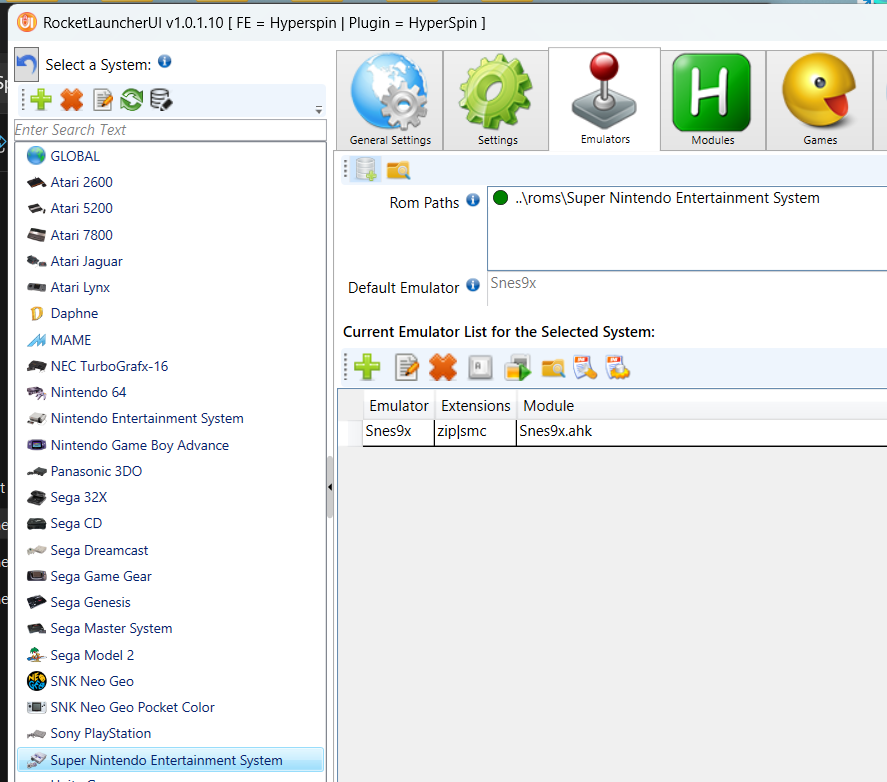
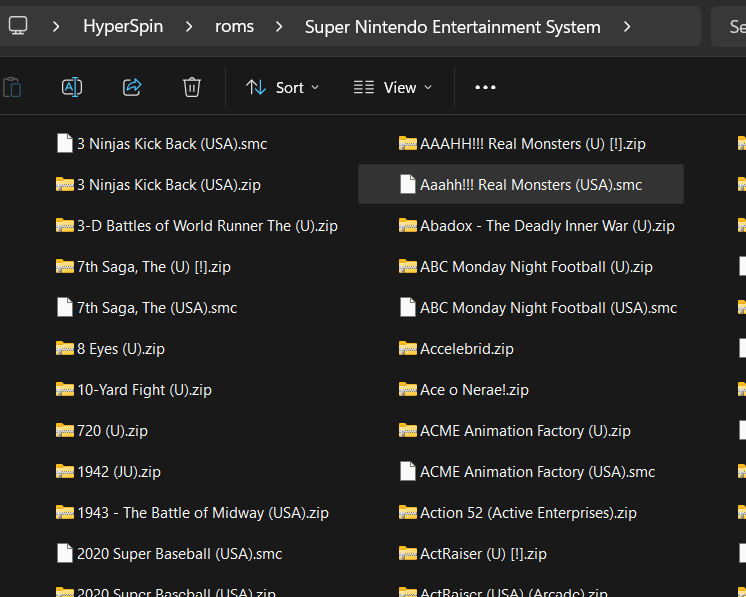
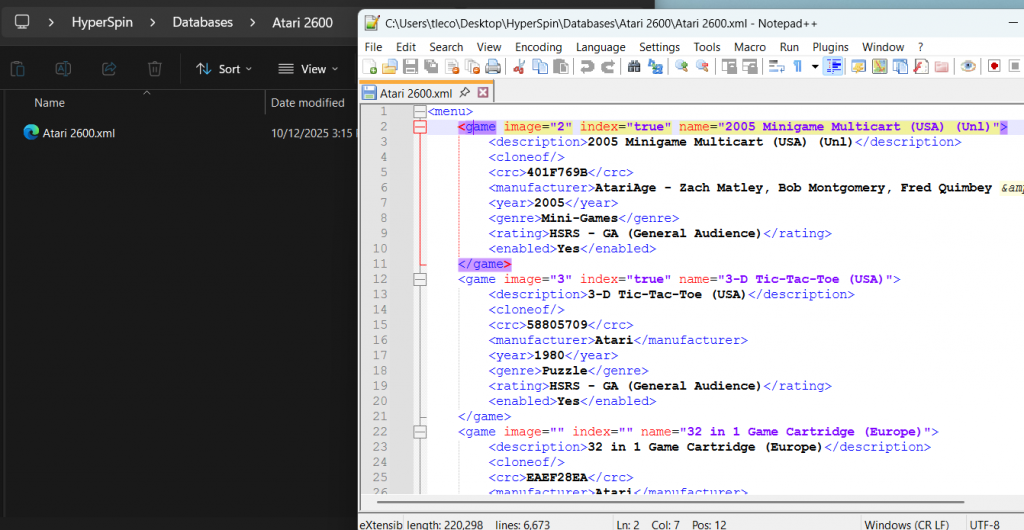
As a side note, you must launch joytokey before launching hyperspin or it won’t bring up the controllers, only the keyboard…even if they’re already bluetooth connected
p1 is asdzxc buttons 1-6, arrowkey for movement
p2 is tyufgh buttons 1-6, ijkl for movement